admin
admin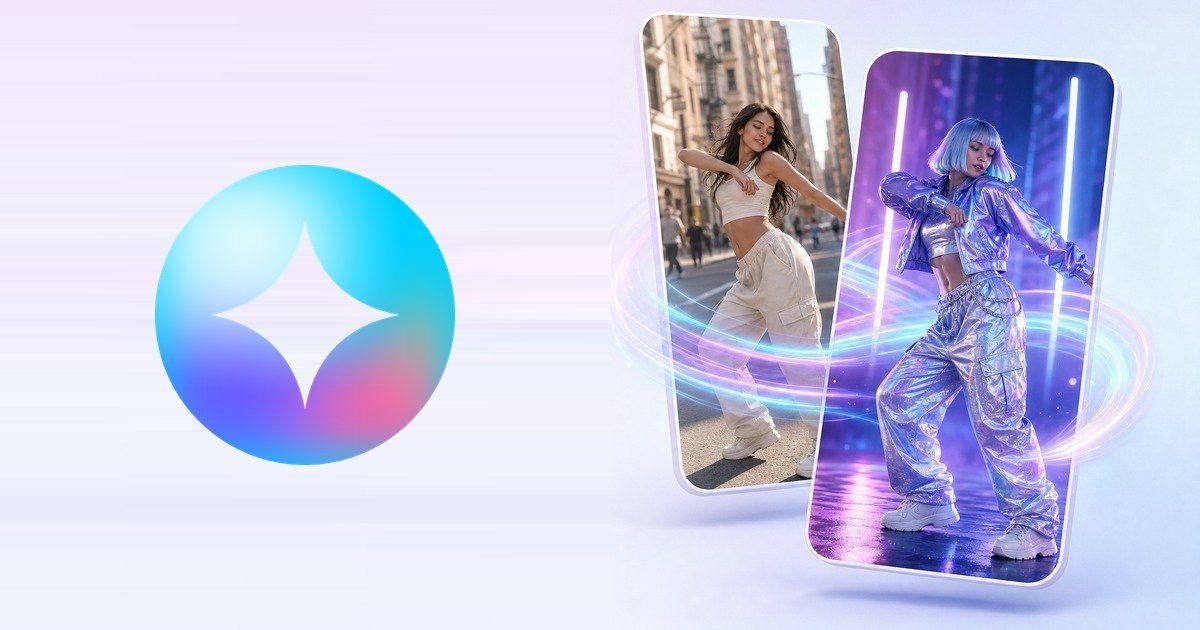
Many people who want to build an online presence already have a skill worth showing: a dance routine, a workout move, a sign-language phrase, a cooking gesture, a teaching style. What they often lack is a way to turn that skill into content that stands out in a busy feed without hiring an animator or learning complex software. AI motion transfer is one practical option to try.
This guide explains what motion transfer is, how a beginner can use it to package an existing skill, and how to keep the result honest and useful for an audience.
What motion transfer actually does
Motion transfer takes the movement from a short video of a real person and applies it to a still image of a character. You record yourself performing a move, choose an illustrated or designed character, and the tool produces a clip of that character moving the way you moved.
The idea of borrowing real movement is old. Animators have traced over live-action film for about a century, a technique known as rotoscoping (https://en.wikipedia.org/wiki/Rotoscoping). Film and game studios use motion capture (https://en.wikipedia.org/wiki/Motion_capture) suits and cameras to record performers. AI motion transfer brings a lighter version of the same idea to anyone with a phone and a browser.
Why this suits skill-based creators
If your value is in how you move or demonstrate something, motion transfer lets you keep your real performance while changing how it looks. A few examples:
– Fitness or yoga instructors can show a move on a consistent illustrated character, which keeps attention on the form rather than the room it was filmed in.
– Dance teachers can create a recognisable character that “performs” each new step of a routine.
– Language or sign-language tutors can present short gestures in a friendly, consistent style.
– Small online sellers can create a simple brand character that waves, points or celebrates in promotional clips.
In every case the skill is still yours. The tool only changes the visual presentation.
A simple workflow for beginners
1. Choose one skill and one short move. Start with something that takes three to ten seconds. Short, clear movements usually work better than long sequences.
2. Record a clean driving video. Film yourself against a plain background in good, even light. Keep your whole body in frame if the move uses arms and legs, and keep the camera still. Wear clothes that contrast with the background so the outline of your body is easy to read.
3. Prepare the character image. Use a character you created, commissioned or have the right to use. A full-body image with clear limbs, in a pose similar to your starting position, generally gives more stable results.
4. Run the motion transfer. Upload both files to a motion transfer tool. Genjutsu is one browser-based example, and there are others; the steps are broadly similar. Generate a result and watch it at full size, not just as a thumbnail.
5. Review and repeat. Look for wobbling hands, sliding feet or limbs that cross through the body. Small fixes to the driving video, such as slower movement or a better camera angle, often help more than changing settings.
Turning clips into a content routine
One good clip is a start; a routine is what builds an audience. A realistic plan for someone with limited time could look like this:
– Pick a theme for the week, for example “three beginner stretches”.
– Record all the driving videos in one session while the lighting and setup are the same.
– Generate the clips with the same character, so your audience starts to recognise it.
– Pair each clip with a short explanation in the caption: what the move is, who it helps and one common mistake.
Mixing these clips with normal live footage of you teaching also works well. The animated character attracts attention; the real footage builds trust.
Keep it honest
Audiences and platforms increasingly expect creators to be open about AI-assisted content. YouTube, for example, asks creators to disclose realistic altered or synthetic content (https://support.google.com/youtube/answer/14328491) in certain cases. Even when a disclosure is not required, a short note such as “animated with AI motion transfer from my own movement” is a good habit.
Also respect rights. Only use character images you own or have permission to use, and only use driving videos of yourself or of people who have agreed to it.
Final thoughts
Motion transfer does not create a skill for you, and it is not a shortcut to an audience. What it can do is help you present a skill you already have in a fresh, consistent and low-cost way. Start with one short move, learn what makes a clean recording, and build from there.
About the author: Genjutsu Team builds Genjutsu (https://genjutsu.app), a browser-based AI motion transfer tool for creators and small brands, and writes practical guides on AI video.